
11 Smart Ways to Use Android's Split Screen Feature
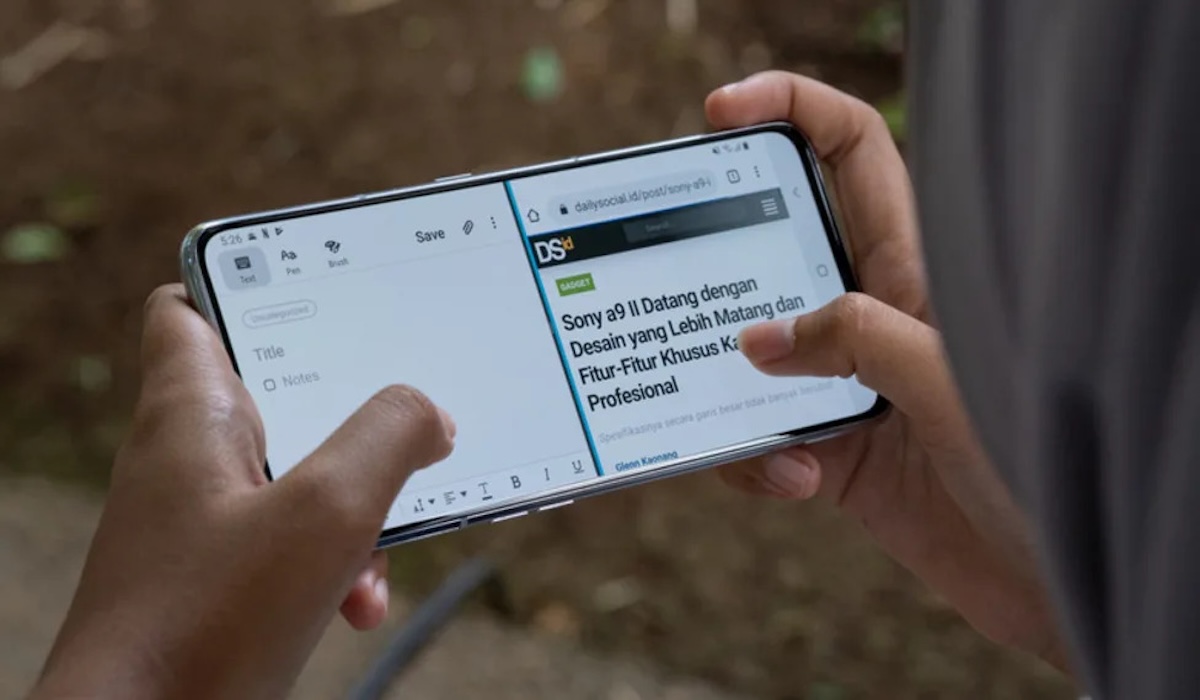
Have you ever felt frustrated having to constantly switch between apps while working on your phone? If so, you may not be fully utilising the split-screen feature on your Android device.
This feature is often overlooked, yet its productivity capabilities far surpass those of competitors.
Activating the feature is straightforward: open the recent apps view, tap the app icon, and select ‘Split Screen’. With the screen divided, you can multitask seamlessly. Here are 11 clever ways to maximise the split-screen feature on Android for greater ease.
In today’s fast-paced information age, misinformation spreads rapidly. With split-screen, you can view a news article or video on one side and Google search on the other.
If you encounter dubious claims, simply copy the text and paste it into the search bar without closing the main content.
Watching long videos can become tedious when done alone. Split the screen to play YouTube on top and an instant messaging app below.
Unlike Picture-in-Picture mode, which uses a small window that often obscures other content, split-screen allows you to adjust video window sizes as needed.
Tracking monthly expenses can be confusing when switching between banking and calculator apps. With split-screen, display bank statements on one side and a calculator on the other. This is also useful for group expense trackers like Splitwise.
For Android tablet users replacing laptops, this feature is a lifesaver. Research materials in a browser on one side and draft documents in Google Docs or PowerPoint on the other—far more efficient than repeatedly switching tabs.
True sports fans will want real-time player statistics. Watch live streams on one window and SofaScore on another. Note: stats apps sometimes update scores faster than live broadcasts!
When calling customer service, you’re often asked for order numbers or verification codes. Keep the dialler open on one side while viewing order details in email or shopping apps without panic.
If your car doesn’t support Android Auto, split-screen is the best alternative. Use Google Maps or Waze alongside your favourite music player. Ensure the phone is securely mounted to maintain focus on the road while controlling navigation and music.
Games like chess or Scrabble often involve long waiting periods. Instead of staring at the screen, use split-screen to read articles or reply to messages. Resize the game window when it’s your turn.
Being a productive parent is easier now. Run a baby monitor app on one side while working, shopping for household needs, or relaxing on the other.
Google Chrome has a hidden feature supporting split-screen natively. Open a tab, go to the three-dot menu, select ‘New Window’, and divide the screen into two separate Chrome windows—ideal for comparing product prices or information from different sites.
Writing lengthy email replies often requires referencing the original message. In Gmail, split the screen so the draft is on one side and the original email on the other, ensuring professional communication remains accurate and contextual.
Conclusion: Split-screen is more than just a decorative feature. By maximising its use, you can save time and boost work efficiency right from your fingertips.