
Selling a Used Phone? Here Are 9 Steps to Erase Your Personal Data
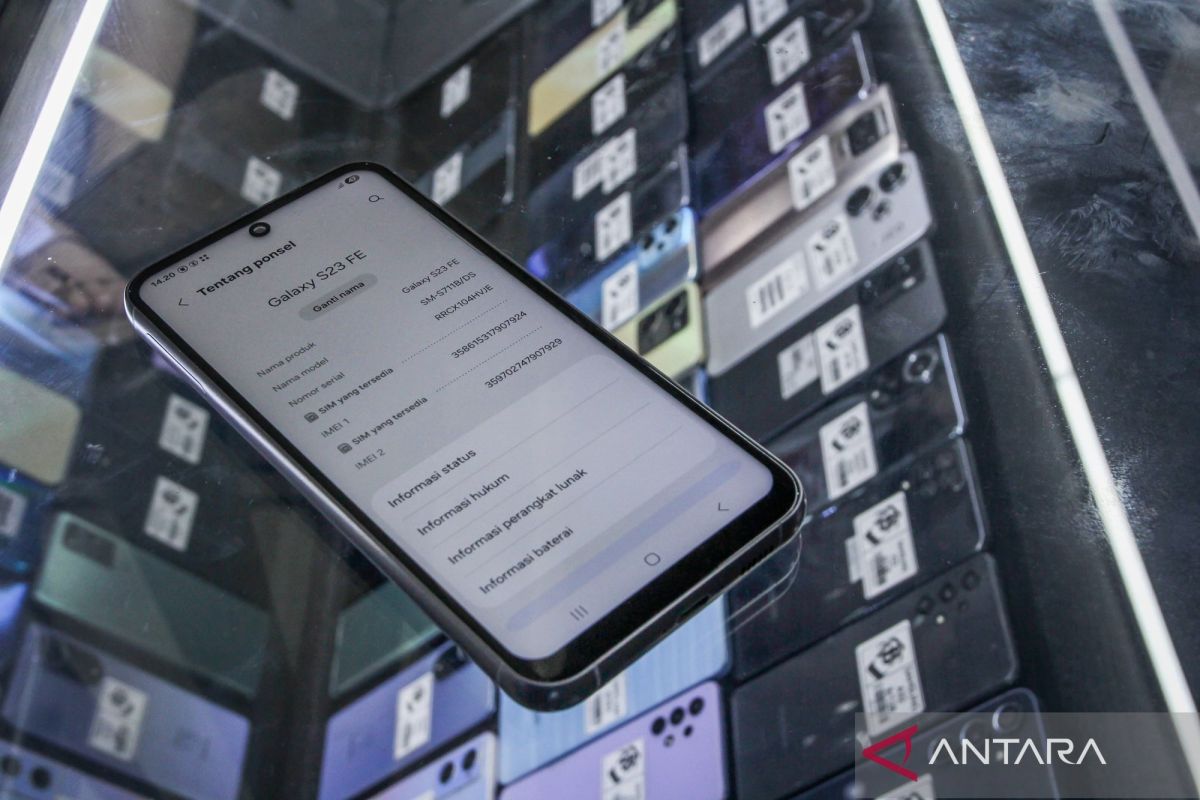
Jakarta (ANTARA) - Selling a used mobile phone involves more than simply deleting photos, videos and apps. Users also need to ensure that all personal data on the device has been erased so it cannot be misused by its next owner.
Phones store a range of important information, from contacts, conversations, photos and documents to transaction histories and access to email and banking services. If the device is not properly wiped, some information may remain even after users have manually deleted certain files.
One important step before selling a phone is to perform a factory reset. However, this should be done only after users have backed up important data and removed any accounts still linked to the device.
The process for deleting data differs between Android phones and iPhones. Here are the steps to take before handing the device to a buyer.
- Back up important data first
Before erasing everything on the phone, make sure any data still needed has been transferred to a new device or stored somewhere safe.
Check photos, videos, contacts, documents, messages, notes and work files. Android users can back up data through their Google account, while iPhone users can use iCloud or a computer.
Bear in mind that not all apps back up all their data automatically. Apps such as WhatsApp and authentication services may require a separate back-up or transfer process.
Make sure the backed-up data can be accessed from another device. This is important to prevent the loss of information needed after the erasure process.
Phones are often used to access banking services, digital wallets, email and two-factor authentication apps. Users should therefore ensure that all important access has been transferred before resetting the device.
Items to check include:
Transfer mobile banking apps to the new phone in accordance with the bank’s procedures.
Make sure digital wallet accounts can be accessed from another device.
Transfer authentication codes from apps such as Google Authenticator, if used.
Ensure the recovery phone number and email address are still active.
Check which apps use the old phone as a device for sign-in verification.
These steps help prevent users from losing access to their accounts after the device has been wiped.
- Remove the Google or Apple account
Before resetting the device, remove any accounts still linked to it. This also helps prevent the new owner from encountering a device lock.
On an Android phone, open Settings, go to Passwords & accounts or Accounts, select the Google account and tap the option to remove it. Menu names may vary depending on the phone’s brand and Android version.
Samsung users should also check for a linked Samsung account.
On an iPhone, open Settings, tap the user’s name at the top and select Sign Out. Follow the instructions to sign out of the Apple account.
Make sure the account has been successfully removed before proceeding.
Remove the SIM card and any external memory card before handing the phone to the buyer.
A SIM card may store contacts or other information, while a microSD card may contain personal photos, videos and documents that will not be erased when the phone’s internal storage is reset.
If you use a memory card, check its contents and transfer any data you still need. Then remove it from the device.
Users with an eSIM should also check their mobile-number settings. Make sure the eSIM profile is removed from the old device if the number is being transferred or will no longer be used on that phone.
- Erase data with an Android factory reset
Once important data has been backed up and accounts removed, users can perform a factory reset. This restores the device to its original settings and erases user data stored in its internal storage.
The general steps are:
Open Settings.
Select System or General Management, depending on the phone’s brand.
Go to Reset Options or Reset.
Select Erase All Data (Factory Reset) or Factory Data Reset.
Review the information displayed before continuing.
Enter a PIN or password if requested.
Confirm the data erasure.
On Samsung Galaxy phones, the route is generally Settings > General Management > Reset > Factory Data Reset.
On some other Android devices, the reset option can be found under System > Reset Options.
The process may take some time. Once complete, the device will show the initial setup screen, as it did when first used.
iPhone users can use the Erase All Content and Settings feature to remove personal information and restore the device to its initial state.
The steps are:
Open the Settings app.
Select General.
Scroll down and tap Transfer or Reset iPhone.
Select Erase All Content and Settings.
Tap Continue.
Enter the iPhone passcode or Apple account password if requested.
Follow the instructions until the erasure is complete.
If the device uses an eSIM, pay attention to the option to erase the eSIM profile when it appears. Make sure the number has been transferred or is no longer needed on the old device.
The process will also disable services such as Find My and remove Activation Lock, allowing the new owner to use the device once it is complete.
- Make sure the data has really been erased
Do not hand the phone straight to the buyer after the reset. First check that it has returned to the initial setup screen.
On both Android and iPhone, the device should display a welcome screen or language and initial setup options, rather than opening to the home screen with the previous owner’s apps and data.
Also make sure no old account is still prompting for verification when the device is turned on again. If it asks for the previous owner’s account, review the account-removal and activation-lock procedures.
Do not sign back into a personal account just to check the phone after the reset. If the device requests activation through the old account, resolve the issue before handing it to the buyer.
In addition to the data on the phone, users should check other devices still connected to it.
For example, an Apple Watch previously paired with an iPhone should be unpaired. Bluetooth devices such as smartwatches, fitness bands and other accessories can also be checked and disconnected.
If the old phone is still listed as a trusted device on an email account or security service, check the device list through the account settings on a new phone or computer.
This helps ensure the old device can no longer receive notifications or verification codes, or access personal accounts.
- Remove accessories and check the phone’s condition
Once all data has been erased, carry out a physical check before selling the device.
Remove the SIM card, memory card, case and personal accessories that are not included in the sale. Clean the screen and exterior with a soft cloth, following the device’s care instructions.
Check the screen, camera, buttons, speakers, charging port and battery. Be honest with prospective buyers about the phone’s condition, including any damage or replaced components.
Make sure the phone is on the initial setup screen and ready to be activated by its next owner.
For most modern phones, the manufacturer’s official factory-reset feature is the recommended way to erase data before sale. This is because modern devices generally use encryption to protect stored information.
Security guidance from the UK’s National Cyber Security Centre explains that a factory reset on an encrypted device can erase the keys needed to read the data, making the old information inaccessible through ordinary means.
Users should nevertheless follow the procedure for their device’s brand and model. Erasing data from internal storage does not automatically erase the contents of a microSD card or data stored in cloud services.
Therefore, do not rely only on deleting photos or apps one by one. Use the official erasure feature and make sure any external storage has been removed.
Erasing personal data before selling a used phone is an important step in protecting information. Users should back up their data, transfer access to important apps, remove linked accounts, take out SIM and memory cards, and then perform a factory reset appropriate to the device.
Afterwards, check that the phone has returned to the initial setup screen and is no longer linked to the previous owner’s accounts. These steps make it more ready for sale while reducing the risk of personal data being misused.
Source: jawawa.id (https://jawawa.id/newsitem/selling-a-used-phone-here-are-9-steps-to-erase-your-personal-data-1793929907)
Originally published by Antara (Indonesian) (https://www.antaranews.com/berita/5835679/mau-jual-hp-bekas-ini-9-langkah-menghapus-data-pribadi), translated from Indonesian