
How to use an iPhone as a webcam for a MacBook without any apps
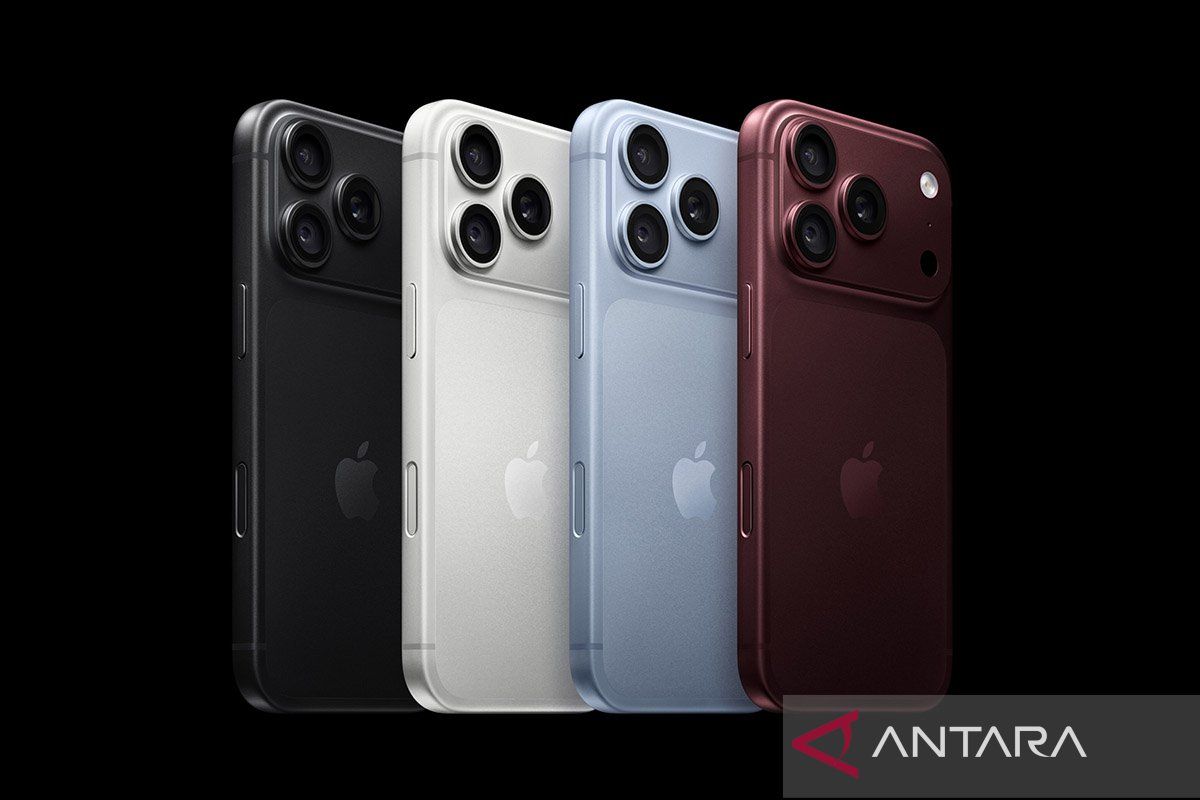
Jakarta (ANTARA) - The built-in MacBook camera is actually good enough for video calls or online meetings. However, for better image quality, Apple users can make use of an iPhone as a webcam.
Apple provides a feature called Continuity Camera which allows an iPhone to be used as both a camera and a microphone for a Mac. The feature requires no additional applications and can be used wirelessly or with a USB cable.
By using the iPhone’s rear camera, users can achieve more flexible framing than with the MacBook’s built-in camera.
So how do you use it?
- Make sure your iPhone and MacBook are supported
Before starting, ensure the iPhone is running iOS 16 or later. The feature is available on the iPhone XR or newer models.
Meanwhile, the MacBook or Mac must be running macOS Ventura 13 or later.
In addition, both devices must be signed in with the same Apple Account and have two-factor authentication enabled.
For wireless use, make sure Wi-Fi and Bluetooth are switched on for both the iPhone and the MacBook. The two devices also need to be near each other.
On the iPhone, open Settings, then select General.
After that, look for the AirPlay & Continuity or AirPlay & Handoff menu, depending on the iOS version being used.
Make sure the Continuity Camera option is enabled. It is usually switched on by default.
- Position the iPhone correctly
To use it as a webcam, place the iPhone near the MacBook on a stable stand or mount.
Position the iPhone’s rear camera to face the user. Apple recommends using a horizontal or landscape orientation so that the device can be selected automatically by the application in use.
Make sure the camera is not obstructed and the iPhone does not shift easily during video calls.
- Open a video call application on the MacBook
Once the iPhone is correctly positioned, open an application that requires a camera, such as FaceTime or another video conferencing application.
In FaceTime, users can open the Video menu, then select the iPhone as the camera.
In other applications, the camera settings may be located elsewhere. There is usually a camera option within the application’s video or audio settings menu.
Once selected, the iPhone’s rear camera will be used to display video on the MacBook.
Interestingly, Continuity Camera can work wirelessly. So users do not have to keep the iPhone connected to the MacBook via a cable.
However, if used over a long period, the iPhone’s battery will naturally drain. To keep it charged, the iPhone can be connected to the MacBook using a USB cable.
Using a cable is also an option if the wireless connection encounters problems.
- There are additional video features
Using an iPhone as a webcam is not just about getting better camera quality. Apple also provides a number of video features that can be used when Continuity Camera is active.
Users can take advantage of features such as Portrait Mode, Center Stage, Studio Light and Desk View, depending on the iPhone model, operating system version and application used.
Desk View, for instance, can help show the desk area in front of the user. This feature can be useful when wanting to show objects, notes or particular activities during a video call.
If the iPhone does not appear as a camera
If the iPhone is not detected by the MacBook, try checking whether Wi-Fi and Bluetooth are switched on and whether both devices are using the same Apple Account.
Also make sure the iPhone and MacBook are running operating systems that meet the requirements. If problems persist, connecting the iPhone to the MacBook via a USB cable is one step worth trying.
Users can also update iOS, macOS and video call applications to the latest versions.
Ultimately, the Continuity Camera feature makes the iPhone a practical alternative webcam for MacBook users. Without needing to install additional applications, users simply take advantage of Apple’s built-in feature to gain a more flexible camera for video calls, online meetings and other activities.