
Complete Guide on How to Create a Jakarta Joint SPMB Account for Junior, Senior, and Vocational High Schools 2026
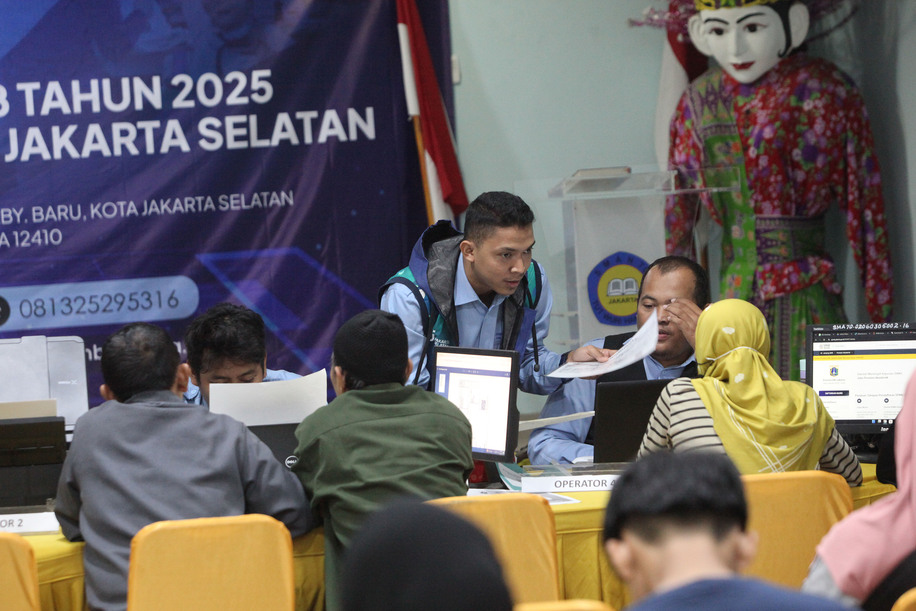
The Joint Student Admission System (SPMB) Bersama Jakarta is an initiative by the Jakarta Provincial Government to expand access to quality education for the capital’s residents. Through this programme, prospective students can register for private schools under a government-supported financing scheme. The most crucial initial step in this process is creating an official account on the SPMB portal.
This article provides an in-depth review of the procedures for creating a Jakarta Joint SPMB 2026 account, from document requirements to the activation stage, to ensure a smooth registration process. The Joint SPMB is an admission pathway that integrates public and private schools into a single registration system. The programme aims to accommodate graduates who are not accommodated in public schools but wish to receive an equivalent quality of education in partner private schools without being burdened by large initial enrolment fees.
Before starting the online registration process, ensure you have prepared the following documents in digital format (clear scans or photos):
The account creation process is conducted entirely online through the official PPDB/SPMB Jakarta website. The steps are as follows:
Open your browser and visit the official website at ppdb.jakarta.go.id. Select the intended level of education (SMP, SMA, or SMK) from the available menu.
Click the “Account Submission” or “Account Registration” button. You will be required to enter your participant number (usually the NISN) and select your domicile within the DKI Jakarta province. Enter the security code displayed on the screen, then click “Continue.”
Complete the personal data form. Ensure that your full name, date of birth, and address match your Family Card (Kartu Keluarga). Even a single character error can hinder the verification process in the subsequent stage.
Upload scans of the required documents. Ensure the file size does not exceed the maximum limit (usually 1 MB per file) and the format is correct (JPG, PNG, or PDF).
Once all data is entered, the system will display a summary. Review it carefully. If correct, click “Save” and print the account submission receipt. This receipt contains a Token or Verification Code.
After the administrator verifies the data, you must perform activation. Click the “Activation” menu, enter your participant number and the token you received. You will be prompted to create a new password to log into the system.
Many prospective students fail at the initial stage due to preventable technical issues. The Jakarta Education Office provides flexibility for educational units in determining learning methods, whether through face-to-face instruction or distance learning (PJJ).