
5 Steps to Fix a Samsung Phone Stuck in Safe Mode
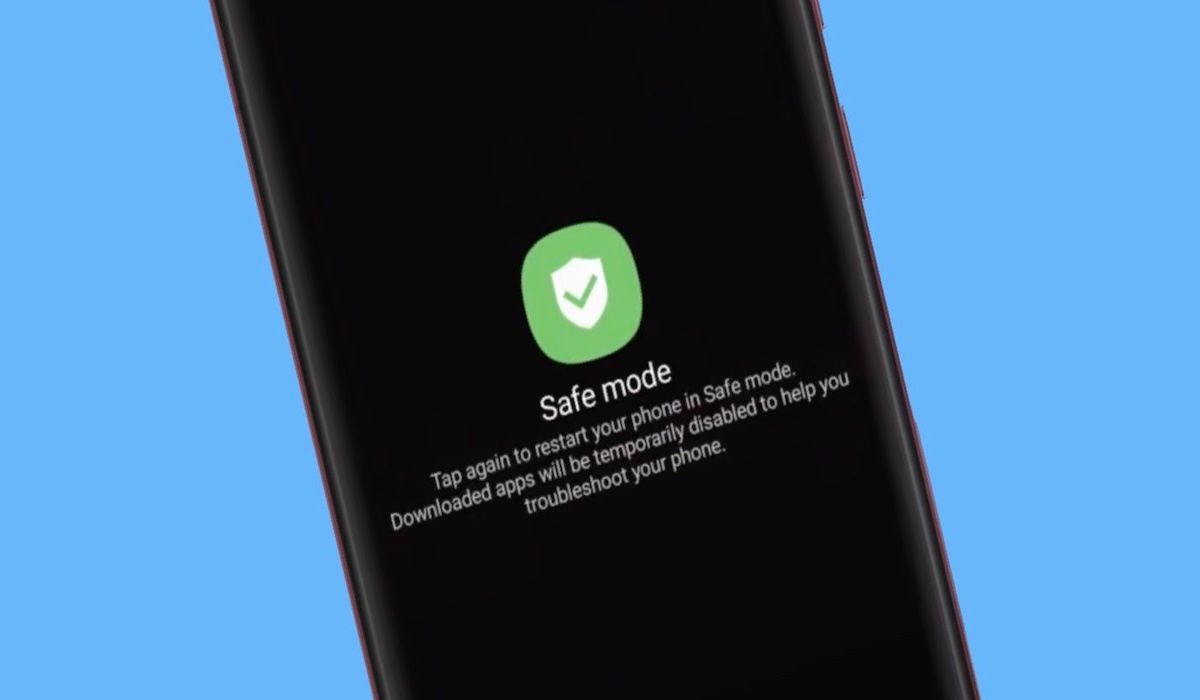
Have you ever noticed your Samsung phone suddenly displaying ‘Safe Mode’ or ‘Safe Mode’ in the bottom-left corner of the screen? When active, all third-party apps you’ve downloaded will temporarily disappear, and the phone will only run the basic system. This situation often causes panic among users, especially if the phone seems ‘stuck’ and unable to return to normal display. Safe Mode is actually a diagnostic feature designed to identify system faults or app-related issues. However, if the phone remains stuck in this mode, it can disrupt your productivity. Here are five quick steps to restore your Samsung phone from Safe Mode. The simplest and often most effective step is to restart. Press and hold the Power button until the power menu appears, then select ‘Restart’. In many cases, the system simply needs a refresh to automatically disable Safe Mode. Some newer Samsung models display a specific notification when Safe Mode is active. Swipe down from the top of the screen to open the notification panel. If you see a message saying ‘Safe Mode is on’ or ‘Safe Mode Active’, tap it. This usually brings up an option to turn off Safe Mode, prompting an automatic reboot. Safe Mode is typically activated by holding the Volume Down button during boot-up. If the Volume button is stuck, pressed too tightly by a case, or physically damaged, the phone will keep entering Safe Mode every time it’s powered on. Ensure the Volume button isn’t obstructed and try removing the phone case to check for physical pressure on the button. If a standard restart doesn’t work, try a force restart. Press and hold the Power and Volume Down buttons simultaneously for 7-10 seconds. This forces the system to cut power temporarily and restart from scratch, often breaking the persistent Safe Mode cycle. If the phone remains in Safe Mode, it’s likely due to a corrupted or severely buggy third-party app causing the system to reject it. In Safe Mode, you can still access Settings > Apps. Recall the last app installed before the issue occurred and uninstall it. After removal, restart the device. If the above steps fail, there may be firmware or operating system damage. Consider a Factory Reset as a last resort, but ensure all important data is backed up first. Following these steps should restore your Samsung phone to normal operation with all apps reappearing. If the problem persists, visit an official Samsung service centre for further hardware diagnostics.