
3 ways to install Health Connect on Android devices in 2026: official and straightforward guide
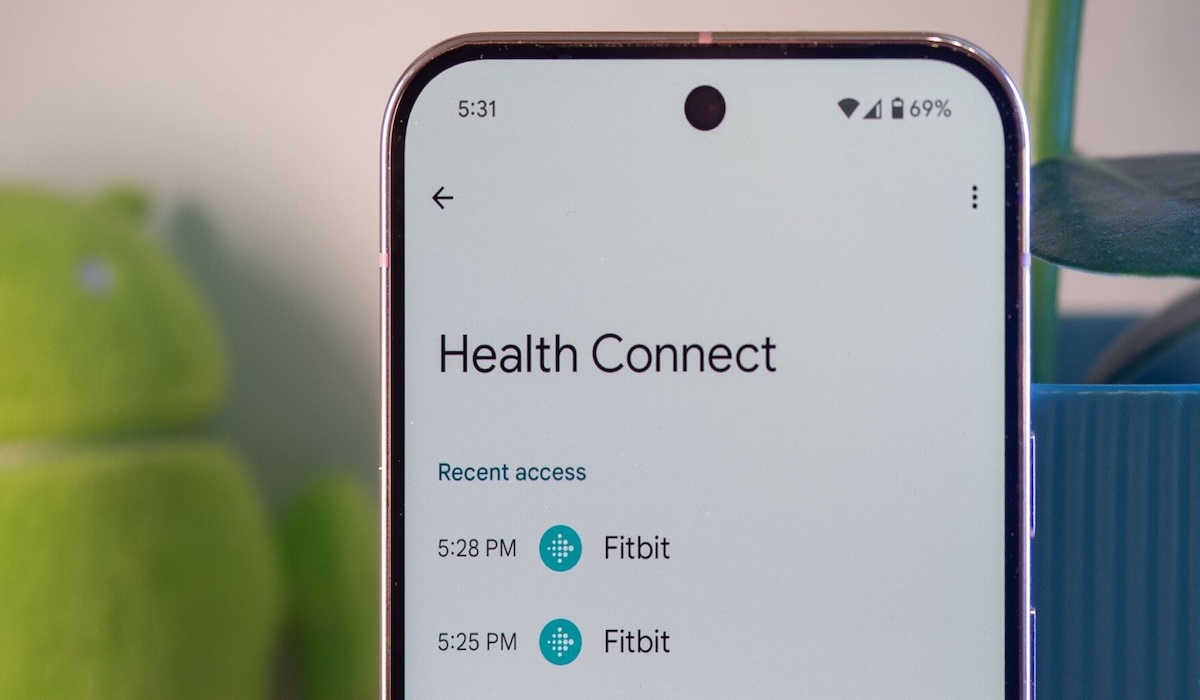
managing health data from various apps like Fitbit, Samsung Health, and Google Health can be cumbersome due fragmented information. In 2026, Google’s primary solution is Health Connect, also known as Health Connect by Android. This platform acts as a centralised bridge, allowing different health applications to share data securely. For those looking to integrate their Android fitness ecosystem, here’s an official and straightforward guide to installing and activating Health Connect based on your operating system version. Health Connect has been downloaded over 50 million times on the Play Store. On newer Android versions (Android 14 and above), the feature is no longer a separate app but integral to the operating system. Before starting, check your device’s Android version as access methods differ: on modern devices, Health Connect is built into the system, so no Play Store download is needed. If you previously had an older Health Connect app, data will be transferred automatically and the old app can be uninstalled. For devices running Android 13 or older (minimum Android 9 Pie), manual download is required. After accessing Health Connect, follow these steps to sync data: if you have trouble finding the settings, use the search bar in Settings by typing ‘Health Connect’. Ensure you have the latest Google Play system update for security compatibility. Note that Health Connect currently does not support work profiles (Android Work Profile); use a personal profile to manage health data effectively in 2026.